Audiolounge Sliderman Support & Documentation
Welcome to Audiolounge Sliderman! Start with the More slider to find the compression you like, then explore Edge and Mix to shape its character. This guide explains what each control does so you can spend more time listening and less time guessing.
Jump to a section below or download the PDF manual to keep it handy. If you need a hand, take a look at our Frequently Asked Questions or contact Audiolounge.
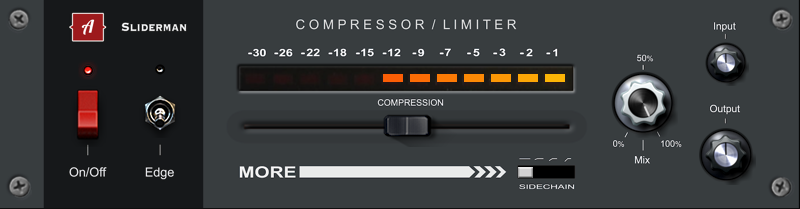
1. Metering
The LED metering shows the sample-accurate reduction (dB) that is applied during compression or limiting.
2. Controls
Audiolounge Sliderman comes with practical controls that allow you to dial-in your desired sounds very quickly.
On/Off
Enables or bypasses the plug-In.
Edge
With edge mode enabled, the front panel color changes to red and saturation is applied to the signal before processing. Drive the input knob to apply more of this effect and adjust the level with the output knob.
More Slider
Sometimes, more is more. This slider controls the amount of compression that is applied. The following parameters are affected dynamically for the distinctive sound:
- Threshold
- Ratio
- Attack
- Release
- Gain
Sidechain
Audiolounge Sliderman features an internal sidechain which allows you to reduce the impact of low frequencies on compression. Select from one of the following high pass filters (from left to right):
- No sidechain
- 60Hz
- 80Hz
- 120Hz
Mix
Allows you to mix the unprocessed and the processed signal for parallel compression.
Input
Adjust the input level to change compression behavior and the saturation (in edge mode only). If the more slider is hard-left, you can drive the signal directly into the limiter. Adjust the signal up to +/- 20db.
Output
Adjusts the output signal +/- 20db.
3. Appendix
Audiolounge Sliderman supports sample rates of up to 192kHz.
System Requirements
Windows 10 (22H2) or later, 64-bit (x64). Windows 11 recommended.
macOS 10.13 or later (Intel and Apple silicon)
DAW with support for Audio Units / VST3 / AAX